As of Management Console 1.5.X, 3rd-party password manager integration is now supported. Apply saved credentials from a 3rd-party password manager to make logging in to the console easier.
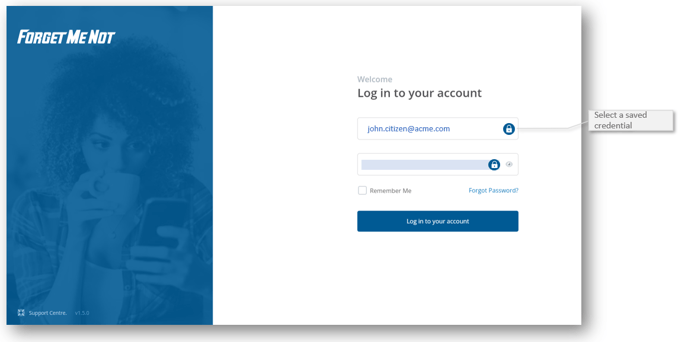
Steps to login with a password manager
- Go to the console login screen console.forgetmenot.chat.
- Click into the Email field to display your 3rd-party password manager icon.
- Follow your 3rd-party password manager instructions to select a stored set of credentials.
- The email address will be displayed in the email field or a blue bar may appear.
- Click into the password field to display a blue bar.
Note: This should also ensure the email address is displayed in the email field. - Then select Log in to your account to continue.
⚠️ If your password manager icon does not appear in the email or password fields, it may not be compatible with the browser. Contact your password manager provider for support with this.
Was this article helpful?
Still need help?
Contact us